Setting up a Formuler IPTV box gives you access to one of the most refined television streaming experiences on the market. Unlike generic Android TV sticks that rely on third-party mobile apps, Formuler devices are built around a dedicated hardware-and-software ecosystem powered by MYTVOnline (MOL2 and MOL3). This purpose-built interface delivers instant channel surfing, comprehensive Electronic Program Guides (EPG), hardware-accelerated 4K HDR playback, and true PVR recording.
Whether you are configuring the flagship Formuler Z11 Pro Max, the compact Formuler Z mini, or the proven Formuler Z10 series, this complete 2026 guide walks you through every step: connecting your hardware, finding your virtual MAC address, setting up Stalker Portals, configuring Xtream Codes API, managing EPG schedules, and fine-tuning anti-buffering settings.
Please Note: BossTV is an IPTV subscription provider and does not sell physical streaming hardware or set-top boxes. If you already own a Formuler box, you can pair it with our premium, high-stability IPTV box subscriptions to enjoy seamless 4K and Full HD streaming.
Table of Contents
- 1. Formuler IPTV Box Lineup & Hardware Comparison (2026 Edition)
- 2. What Makes MYTVOnline 3 (MOL3) Different from MOL2?
- 3. Initial Hardware Setup & Connections (HDMI, Power & Internet)
- 4. How to Find Your Formuler MAC Address for Stalker Portal Activation
- 5. Step-by-Step Stalker Portal Setup on MYTVOnline (MOL3 & MOL2)
- 6. Step-by-Step Xtream Codes API Setup on Formuler
- 7. Adding an M3U Playlist URL or File
- 8. Electronic Program Guide (EPG) & Channel Management
- 9. Advanced PVR Recording, Timeshift & USB Storage Setup
- 10. Formuler GTV-BT1 Bluetooth Remote Optimization & Hotkeys
- 11. Performance Optimization & Anti-Buffering Best Practices
- 12. Troubleshooting Common Formuler IPTV Errors
- 13. Compatible Stalker & Xtream IPTV Subscriptions for Formuler
- 14. Frequently Asked Questions (FAQ)
- 15. Final Thoughts & Quick Setup Checklist
1. Formuler IPTV Box Lineup & Hardware Comparison (2026 Edition)
Formuler manufactures Android-powered media streamers engineered explicitly for linear live television and Video-on-Demand (VOD). Unlike standard streaming boxes, Formuler devices incorporate hardware decoding decoders tailored to MPEG-TS, HLS, and cutting-edge AV1 video compression.
Understanding the differences between Formuler models ensures you select the correct configuration for your television setup:
| Model | SoC & GPU | RAM / Storage | Default App | Networking | Best For |
|---|---|---|---|---|---|
| Formuler Z11 Pro Max | Realtek RTD1319C / Mali-G57 | 4GB DDR4 / 32GB eMMC | MYTVOnline 3 | Gigabit LAN + Wi-Fi 6 (AX) | Premium 4K HDR, heavy recording & fast channel hopping |
| Formuler Z11 Pro | Realtek RTD1319 / Mali-G57 | 2GB DDR4 / 16GB eMMC | MYTVOnline 3 | Gigabit LAN + Dual-Band AC | Main living room setup with wired Ethernet |
| Formuler Z mini | Realtek RTD1319C | 2GB LPDDR4 / 8GB eMMC | MYTVOnline 3 | Fast 2x2 Wi-Fi 5 (AC) | Compact wall-mounted TVs, travel & bedrooms |
| Formuler Z10 Pro Max | Realtek RTD1319 / Mali-G31 | 4GB DDR4 / 32GB eMMC | MYTVOnline 2 | Gigabit LAN + Dual-Band AC | Reliable previous-generation 4K streaming |
| Formuler Z10 SE | Realtek RTD1319 | 2GB DDR4 / 4GB eMMC | MYTVOnline 2 | 100M LAN + Single/Dual Wi-Fi | Budget-friendly secondary television streaming |
2. What Makes MYTVOnline 3 (MOL3) Different from MOL2?
The heart of every Formuler box is the proprietary **MYTVOnline** media engine. While MYTVOnline 2 (featured on Z10 models) remains robust, **MYTVOnline 3 (MOL3)**—exclusive to Z11 and Z mini models—introduces several modern capabilities:
- Multi-Provider Group Management: MOL3 allows you to register multiple IPTV servers simultaneously (such as a primary Stalker Portal and an Xtream Codes backup) and combines their channels into a single, unified favorite list.
- Universal Search: Search for team matchups, movies, actors, or specific live events across all connected portals and VOD libraries with one query.
- Cloud Timeshift & PiP: Picture-in-Picture allows you to keep an eye on a live sporting event in a corner window while browsing your TV guide or watching another program.
- Refined Single & Multi-EPG Views: Fast-scrolling timeline interface that loads guide metadata in the background without interrupting audio playback.
- PIN-Protected Custom Groups: Hide or password-lock specific channel categories or international bouquets directly on the box.
3. Initial Hardware Setup & Connections (HDMI, Power & Internet)
Before launching MYTVOnline, ensure your physical hardware is correctly connected and updated to the latest manufacturer firmware:
- Connect HDMI: Plug the high-speed HDMI cable from your Formuler box directly into an HDMI 2.0 or 2.1 port on your 4K television or soundbar.
- Connect Power: Plug the provided power adapter into the device and a surge protector. Turn on your television and switch to the matching HDMI input.
- Establish Your Internet Connection:
- Wired Gigabit Ethernet (Recommended): Connect a Cat6 Ethernet cable from your home router directly to the LAN port on your Formuler box. Wired connections prevent wireless packet loss and maintain steady throughput during live broadcasts.
- Wi-Fi Setup: If using Wi-Fi, navigate to Android Settings > Network > Wi-Fi. Connect to your 5 GHz or Wi-Fi 6 band (802.11ax) per Wi-Fi Alliance standards. Avoid 2.4 GHz networks if your home router is nearby, as 2.4 GHz is susceptible to microwave and neighbor network congestion.
- Run Firmware Updates: Go to the Formuler home screen, open Software Update, and install any pending operating system or MYTVOnline application updates. Reboot the device when complete.
4. How to Find Your Formuler MAC Address for Stalker Portal Activation
If your IPTV subscription uses **Stalker Portal / MAG emulation**, your service provider must register your box's specific virtual MAC address in their middleware system before channels will authenticate.
Crucial Difference: Formuler uses a Virtual MAC Address specifically generated for MYTVOnline that typically starts with 00:1A:79:XX:XX:XX. Do not provide the physical Wi-Fi or Ethernet MAC address found in Android Device Settings, or portal authentication will fail.
Finding the MAC Address in MYTVOnline 3 (Z11 Series & Z mini):
- Launch the MYTVOnline 3 app from your Formuler home screen.
- Click the Menu button on your remote (or press left to open the sidebar) and select Content Manager.
- Click on Content Sources > Add Portal.
- Your unique Formuler MAC address (starting with
00:1A:79) will be displayed clearly on this screen. - Take note of this 12-character alphanumeric code and provide it to your IPTV provider when ordering or renewing your Stalker Portal subscription.
Finding the MAC Address in MYTVOnline 2 (Z10 Series):
- Launch MYTVOnline 2.
- Navigate to Connections from the main menu.
- Highlight your active portal slot or choose Add Portal.
- The MAC address is displayed at the top right or within the portal edit dialogue.
5. Step-by-Step Stalker Portal Setup on MYTVOnline (MOL3 & MOL2)
Once your provider has confirmed that your 00:1A:79 MAC address is active in their billing system, follow these exact steps to connect:
- Open MYTVOnline on your Formuler box.
- Access connection settings:
- In MOL3: Open Content Manager > Content Sources > Add Portal.
- In MOL2: Open Connections > Add Portal.
- Portal Nickname: Enter a friendly name to identify the service (for example, BossTV Stalker).
- Portal URL: Enter the exact Stalker Portal web address provided in your subscription email (e.g.,
http://portal-address.com:8080/c/). Double-check every character, colon, and trailing slash. - Login / Password (Optional): Most Stalker portals only require MAC address authentication and leave user/pass blank. Only enter login credentials if your provider specifically instructs you to do so.
- Click Connect (or Save & Connect).
- A loading progress bar will appear. MYTVOnline will download the channel categories, VOD catalog, and initial EPG guide data. Once 100% is reached, the live television interface will launch automatically.
6. Step-by-Step Xtream Codes API Setup on Formuler
Many modern IPTV subscriptions use the **Xtream Codes API** connection method instead of Stalker MAC authentication. Xtream Codes allows fast metadata indexing and operates across multiple devices.
To configure an Xtream Codes server on MYTVOnline:
- Launch MYTVOnline and navigate to connection sources:
- MOL3: Go to Content Manager > Content Sources > Add Xtream Codes API.
- MOL2: Select Connections > Add Playlist / Xtream Codes.
- Enter the details from your subscription activation email:
- Connection Name: e.g., BossTV Xtream
- Server URL: Enter the full host domain and port (e.g.,
http://server.domain.com:8080). Do not include any trailing paths. - Username: Enter your assigned alphanumeric username.
- Password: Enter your assigned password (case-sensitive).
- VOD & Series Checkboxes: Ensure both Include VOD and Include Series are checked if your package includes Video-on-Demand.
- Click Connect. The application will authenticate your credentials and synchronize live TV channels and movie posters.
7. Adding an M3U Playlist URL or File
If your provider provides a direct M3U Plus URL (typically formatted as get.php?username=...&type=m3u_plus), you can import it into Formuler:
- Open MYTVOnline and select Add M3U Playlist under Content Sources.
- Enter a descriptive name for your playlist.
- Type or paste the complete M3U URL provided by your provider.
- If your provider provides a separate XMLTV EPG URL, enter it into the optional EPG URL field.
- Save the configuration to allow Formuler to parse the stream links.
Note: Whenever possible, prefer **Xtream Codes API** over raw M3U URLs. Xtream Codes loads much faster because it organizes categories on the server side rather than downloading a monolithic playlist file every time you launch the app.
8. Electronic Program Guide (EPG) & Channel Management
Formuler's TV guide is widely considered the smoothest in the industry. To get the most out of your guide data:
- Switching EPG Views: While watching live television, press the EPG button on your Formuler remote to open the full grid view. Pressing the button a second time opens the compact single-channel timeline.
- EPG Time Offset: If guide listings appear an hour or two ahead or behind your local time, navigate to MYTVOnline Settings > EPG > Time Offset. Adjust the offset in (+/-) hourly increments until program times match your local clock.
- Auto-Refresh Interval: In settings, ensure EPG Mode is set to Normal or Background Fetch so your box periodically refreshes schedules without freezing your screen.
- Creating Custom Favorites: When browsing live channels, press the Yellow button (or Star icon) on any highlighted channel to add it to your Favorites. In MOL3, you can create multiple custom groups (e.g., Sports, News, Kids) and re-order channels using simple remote shortcuts.
9. Advanced PVR Recording, Timeshift & USB Storage Setup
One of the biggest advantages of owning a dedicated Formuler box is native **PVR recording and live time-shifting**.
- Prepare a USB Drive or SSD: Connect a high-speed USB 3.0 flash drive or external SSD to the blue USB 3.0 port on your Formuler box. Format the drive as NTFS or exFAT for optimal large-file support.
- Configure Storage Destination: Open MYTVOnline Settings > DVR / Storage and select your mounted external drive as the default recording directory.
- Schedule a Recording from EPG: Navigate to any upcoming show in the EPG grid, press the OK button, and select Record. Your Formuler box will wake from standby, record the stream to external storage, and power down when finished.
- Instant Timeshift: While watching live TV, press Pause on your remote. The stream will buffer to your USB drive, allowing you to pause, rewind, and fast-forward through live action.
Requirement: PVR recording requires your IPTV subscription to support an active connection stream. If you are recording one channel while watching another, your IPTV subscription must support at least 2 simultaneous connections.
10. Formuler GTV-BT1 Bluetooth Remote Optimization & Hotkeys
Most modern Formuler boxes (such as the Z11 Pro Max) come with the advanced **GTV-BT1 Bluetooth Voice Remote**. You can customize this remote for seamless operation:
- Bluetooth Pairing: Ensure your remote is paired over Bluetooth rather than traditional IR line-of-sight. Open Android Settings > Remotes & Accessories > Add Accessory and hold the Home + OK buttons on your remote until it connects. Bluetooth allows you to hide your Formuler box inside a closed cabinet.
- Formuler Remote App: Open the built-in Formuler Remote app from your home screen. You can customize the hotkeys (Red, Green, Yellow, Blue) to launch specific applications, jump directly to VOD, or trigger your favorite sports bouquet with a single press.
- TV Power & Volume Learning: Use the remote app's TV Learning setup to program your Formuler remote to control your television's power and soundbar volume, eliminating the need for multiple remotes.
11. Performance Optimization & Anti-Buffering Best Practices
To prevent micro-stuttering and buffering on high-bitrate 4K 60fps streams, apply these performance settings:
- Enable Auto Frame Rate (AFR): Open MYTVOnline Settings > Player Options > Auto Frame Rate and set it to Match Content Frame Rate (On). This automatically adjusts your television's refresh rate (24Hz, 50Hz, or 60Hz) to match the broadcast stream, eliminating judder during fast-paced sports.
- Configure Buffer Length: If you have an unstable internet connection, navigate to Player Options > Buffer Time and increase it from 0 seconds to 3 or 5 seconds. This gives your device a safety buffer against temporary internet speed dips.
- Set High-Performance DNS: In your Android Network settings, change your DNS servers from your local ISP's default to high-speed public resolvers such as Cloudflare (
1.1.1.1/1.0.0.1) or Google (8.8.8.8/8.8.4.4) for faster portal lookup and EPG downloading. - Verify Connection Speed: Test your streaming speed using the CIRA Canadian Internet Performance Test. For reliable 4K Ultra HD IPTV streaming, maintain at least 25–30 Mbps of consistent download throughput per active device.
12. Troubleshooting Common Formuler IPTV Errors
| Error / Problem | Probable Cause | Recommended Solution |
|---|---|---|
| Portal Authentication Failed (Error 10 / 11) | MAC address not registered on the server, expired subscription, or incorrect portal URL. | Check that you gave your provider the 00:1A:79 MAC address shown in MYTVOnline. Verify that the URL contains the required port and ending slash (e.g., /c/). |
| Xtream Codes Login Failed | Typo in server domain, expired account, or case-sensitive password mismatch. | Re-enter the server URL, username, and password exactly as shown in your activation email. Check that auto-correct didn't capitalize the first letter. |
| EPG Shows "No Information" | Cache corruption or guide data temporarily desynchronized. | In MYTVOnline settings, go to EPG > Clear EPG Data and click Update EPG Now. Allow 2–3 minutes for the full schedule to rebuild. |
| Black Screen with Audio on 4K Channels | Hardware decoder mismatch or unsupported HDMI color profile. | In MYTVOnline settings, switch Video Decoder from Hardware to Software (or vice versa), or enable HDR-to-SDR conversion in Android Display Settings. |
| Remote Control Sluggish or Unresponsive | Low batteries or Bluetooth connection dropped back to IR mode. | Replace AAA batteries. Re-pair the remote in Android Settings via Bluetooth by holding Home + OK. |
13. Compatible Stalker & Xtream IPTV Subscriptions for Formuler
When pairing an IPTV service with your Formuler box, you need a provider that delivers **native Stalker Portal compatibility** and **robust Xtream Codes servers**. BossTV offers several high-availability IPTV packages tailored to Formuler devices:
- Titan 4K IPTV Server – A flagship Stalker Portal subscription featuring low-latency channel switching, rich 4K sports streams, and complete EPG integration for Formuler boxes.
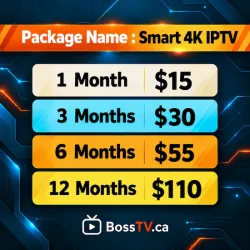
- Smart 4K IPTV – Engineered specifically for MAC-address activation with excellent reliability across Canadian and US live sports.
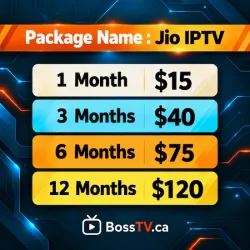
- Jio 4K IPTV – A Stalker-optimized subscription offering comprehensive international programming, movies, and VOD categories.
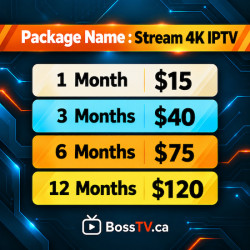
- Stream4K IPTV – High-bitrate 4K and FHD streams compatible with Formuler's MYTVOnline portal environment.
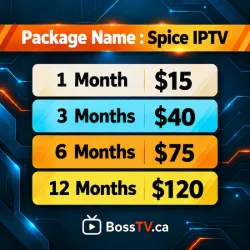
- Spice IPTV Stalker Server – Premium international content and entertainment bouquets with complete MAC activation support.
- M3U & Xtream Codes IPTV Servers – Prefer Xtream API login? Explore our full lineup of multi-connection Xtream Codes servers, including Lion IPTV and Strong 8K IPTV.
To compare all available connection formats and server options, visit our main IPTV Servers Catalog or review our Frequently Asked Questions before purchasing.
14. Frequently Asked Questions (FAQ)
Does the Formuler Z11 Pro Max support Stalker Portal IPTV?
Yes. The Formuler Z11 Pro Max fully supports Stalker Portal connections via MYTVOnline 3. You only need to provide your virtual MAC address (starting with 00:1A:79) to your subscription provider and input their portal URL.
Can I run multiple IPTV subscriptions on Formuler at the same time?
Yes! In MYTVOnline 3 (Z11 series and Z mini), you can connect multiple Stalker Portals, Xtream Codes servers, or M3U playlists simultaneously. MOL3 lets you combine favorites from all providers into a unified channel list.
Why does my Formuler box say "Portal Authentication Failed"?
This error indicates that the portal server does not recognize your box. Ensure your provider has registered your 00:1A:79 MAC address, your subscription is active, and the portal URL is typed correctly without spelling errors.
Can I use Xtream Codes on Formuler Z10 or Z11?
Yes. Both MYTVOnline 2 and MYTVOnline 3 support Xtream Codes API. Simply enter your server URL, username, and password under Content Sources.
Is MYTVOnline free, or do I have to buy it separately?
MYTVOnline is proprietary software pre-installed and permanently licensed with every authentic Formuler device at no extra charge. However, live channels and VOD libraries require an active IPTV subscription.
Can I record live television on a Formuler box?
Yes. By plugging an NTFS or exFAT-formatted USB 3.0 flash drive or external SSD into your Formuler box, you can record live TV, schedule future recordings directly from the EPG, and use one-touch time-shifting.
Does Formuler support 4K Ultra HD and 60fps streaming?
Yes. All modern Formuler boxes (Z10 and Z11 series) feature 4K 60fps decoding with HDR10+, HLG, and modern AV1 codec support when connected to a 4K-compatible television.
What is the difference between my Formuler network MAC and virtual MAC?
Your network MAC address identifies your physical Wi-Fi or Ethernet chip. The virtual MAC address (found inside MYTVOnline and starting with 00:1A:79) is a software identifier specifically required by Stalker middleware servers for IPTV account authentication.
Do I need a VPN when using Formuler IPTV in Canada?
A VPN is not strictly required for Formuler IPTV. However, if your home internet provider throttles streaming traffic during major live sporting events or blocks portal domains, installing a VPN app from the Google Play Store on your Formuler box can restore full streaming speeds.
Does BossTV sell Formuler boxes?
No. BossTV does not sell physical hardware or streaming devices. We specialize in providing high-stability, low-latency IPTV subscriptions compatible with Formuler boxes, Firesticks, Android TV, and other streaming equipment.
15. Final Thoughts & Quick Setup Checklist
A Formuler IPTV box remains the benchmark for dedicated TV streaming because of the tight integration between its Android hardware and the **MYTVOnline** platform. To ensure a smooth, trouble-free setup, keep this quick checklist in mind:
- Connect via Wired Gigabit Ethernet whenever possible for steady 4K data throughput.
- Provide your
00:1A:79Virtual MAC from MYTVOnline if you are activating a Stalker Portal subscription. - Enable Auto Frame Rate (AFR) in MYTVOnline settings to match broadcast frame rates and prevent motion judder.
- Attach an external USB 3.0 drive formatted in NTFS or exFAT if you plan to use PVR recording or live timeshift.
- Pair your GTV-BT1 remote via Bluetooth so you can control your device without direct line-of-sight.
Ready to power your Formuler box with crystal-clear 4K streams and comprehensive EPG listings? Explore our high-stability BossTV IPTV Subscriptions or contact our support team for setup assistance.
Related Products