Quick Summary: Infomir MAG set-top boxes (including the MAG 540, 524, 520, 500A, and legacy MAG 322) are purpose-built IPTV receivers powered by native Stalker/Ministra middleware. Because their firmware connects directly via hardware MAC address (beginning with 00:1A:79), they require zero third-party apps or manual M3U file management. This 2026 guide walks you through network setup, MAC identification, Portal URL configuration, video buffer optimization, and common troubleshooting fixes.
Notice: BossTV.ca is a premium IPTV subscription service provider. We do not sell hardware set-top boxes or streaming equipment.
Table of Contents
- What is an Infomir MAG Box & Why It Remains an IPTV Benchmark
- Supported Infomir MAG Models & Hardware Comparison
- Understanding the 00:1A:79 MAC Address (LAN vs. Wi-Fi)
- Step-by-Step: How to Set Up IPTV on Any MAG Box
- Alternative Setup for Android-Based MAGs (MAG 500A & 425A)
- Buffer Optimization & Network Tweaks for Zero Buffering
- Troubleshooting Common MAG Errors (STB Blocked, Stuck at 10%)
- Why Choose BossTV.ca Stalker Servers for Your MAG Device
- Frequently Asked Questions (FAQ)
1. What is an Infomir MAG Box & Why It Remains an IPTV Benchmark
Engineered by European manufacturer Infomir, the MAG set-top box family represents one of the most stable, purpose-engineered hardware ecosystems for television streaming. Unlike generic Android TV sticks that multitask between background applications, social media apps, and system push notifications, a Linux-powered MAG box dedicates 100% of its processing hardware and RAM to decoding live video streams, rendering electronic program guides (EPG), and parsing portal server data.
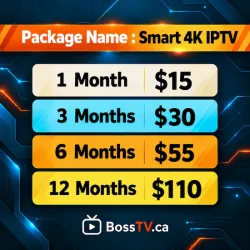
The signature advantage of any genuine MAG device is its native middleware integration (commonly utilizing the Stalker / Ministra portal protocol). Rather than requiring customers to download third-party software, configure playlist refresh timers, or enter complex Xtream Codes API credentials, the MAG box authenticates directly through its factory-assigned hardware MAC address. Once your portal URL is entered and your MAC is active on an enterprise Stalker server—such as our high-speed Titan IPTV Premium Stalker Server or Smart 4K IPTV—the box launches right into the TV guide instantly upon powering on.
2. Supported Infomir MAG Models & Hardware Comparison
Whether you operate an older legacy model or the newest flagship release, BossTV IPTV servers maintain dedicated compatibility across all generations of Infomir hardware. Below is an overview of the modern and legacy models fully supported by our portal network:
| Model | Operating System | Chipset & RAM | Max Resolution / Codecs | Network Connectivity |
|---|---|---|---|---|
| MAG 540 / 540w3 | Linux 4.9 | Amlogic S905Y4 (1 GB DDR4) | 4K UHD @ 60fps (AV1, HEVC, H.264) | Ethernet 100 Mbps + Dual-Band Wi-Fi (w3) |
| MAG 524 / 524w3 | Linux 4.9 | Amlogic S905X2 (1 GB DDR3) | 4K UHD @ 60fps (HEVC H.265, HDR) | Ethernet 100 Mbps + 802.11ac Wi-Fi (w3) |
| MAG 520 / 520w3 | Linux 4.9 | Amlogic S905X2 (1 GB DDR3) | 4K UHD @ 60fps (HEVC H.265) | Ethernet 100 Mbps + 802.11a/b/g/n/ac |
| MAG 500A / 425A | Android TV 9.0 / 8.0 | Amlogic S905X2 (2 GB DDR) | 4K UHD @ 60fps (HDR10, HEVC) | Ethernet 100 Mbps + Dual-Band Wi-Fi + BLE |
| MAG 420 / 420w1 | Linux 4.4 | HiSilicon Hi3798MV200 (512 MB) | 4K UHD @ 60fps (H.265, Dolby Digital) | Ethernet 100 Mbps + Wi-Fi b/g/n (w1) |
| MAG 322 / 254 (Legacy) | Linux 3.3 | BCM75839 / STiH207 (512 MB) | 1080p Full HD (H.264 / MPEG-4) | Ethernet 100 Mbps (Wi-Fi via USB dongle) |
Note: Newer models ending in “w3” designate built-in dual-band 2.4 GHz and 5 GHz Wi-Fi modules verified by the Wi-Fi Alliance. While Wi-Fi provides convenient placement, a wired Ethernet connection is always recommended for heavy 4K HDR live streams.
3. Understanding the 00:1A:79 MAC Address (LAN vs. Wi-Fi)
Every network device manufactured globally possesses a Media Access Control (MAC) address. Under the global IEEE Standards Association registry, Infomir owns the Organizationally Unique Identifier (OUI) prefix 00:1A:79. This means every authentic Infomir MAG box features a 12-character hexadecimal identifier formatted as:
Important: Always Use the LAN MAC Address for Subscription Activation
If your MAG box includes Wi-Fi (such as the MAG 540w3 or MAG 524w3), your device actually possesses two MAC addresses: one for the internal Ethernet port and one for the wireless antenna. Always provide your Ethernet (LAN) MAC address when ordering your subscription from BossTV. Stalker and Ministra portals bind specifically to the primary hardware LAN MAC, even if you ultimately connect the unit to your home network via Wi-Fi.
Two Ways to Locate Your MAG MAC Address:
- Physical Inspection: Flip your MAG box over and check the barcode label on the underside. Look for the line labeled
MAC:followed by00:1A:79:XX:XX:XX. - On-Screen Settings: From the inner portal dashboard, navigate to Settings → System Settings → Device Info. Both your MAC address and firmware revision will be clearly displayed.
4. Step-by-Step: How to Set Up IPTV on Any MAG Box (Linux Models)
The following walkthrough covers all classic and modern Linux-based models, including the MAG 540, MAG 544, MAG 524, MAG 522, MAG 520, MAG 420, MAG 324, and MAG 322. Ensure your television is powered on, your HDMI cable is securely seated, and your remote control has fresh batteries.
Step 1: Open the Main Settings Menu
Turn on your MAG box. If the device loads directly into an empty portal or shows a connection prompt, press the Setup or Gear icon on your MAG remote control. If you are on the default Infomir home screen (inner portal), use the directional arrows to highlight “Settings” and press OK.

Figure 1: Navigating to the Settings panel from the MAG main screen.
Step 2: Access System Settings
Inside the main Settings menu, scroll down through the available system utilities and select “System Settings.” This opens the administrative core of the STB where network adapters, video resolutions, and server URLs are managed.

Figure 2: Entering System Settings on your Infomir device.
Step 3: Connect to the Internet (Ethernet vs. Wi-Fi)
Select “Network” to confirm your internet status. Your MAG box must have active internet connectivity before entering portal details:
- Wired (Ethernet - Recommended): Select Wired (Ethernet) → Auto (DHCP). The screen should indicate that the link is UP and display a valid IP address.
- Wireless (Wi-Fi): If you are using a Wi-Fi-enabled model (e.g., MAG 540w3), select Wireless (Wi-Fi) → Auto (DHCP), choose your home 5 GHz Wi-Fi SSID, and enter your wireless security key.

Figure 3: Configuring network adapters on your Infomir STB.
Step 4: Register Your MAC Address with BossTV
Confirm your 12-character MAC address (e.g., 00:1A:79:AB:CD:EF) from the underside sticker or from System Settings → Device Info. When subscribing to any of our dedicated Stalker servers (such as Titan IPTV or Smart 4K), paste this MAC address into the order notes. Our automated provisioning system activates your device on the portal within minutes.
Step 5, 6 & 7: Navigate to Servers → Portals
Return to the System Settings screen. Scroll down to highlight “Servers” and press OK. Inside the Servers sub-menu, select “Portals.”
Step 8: Input Portal Name & Portal URL
The Portals screen allows you to configure up to two concurrent portal URLs (Portal 1 and Portal 2). Fill in the following fields using your on-screen virtual keyboard (press the KB button on your remote control to pop up the virtual keyboard):
- Portal 1 Name: Enter
BossTV IPTV(or any identifier you prefer). - Portal 1 URL: Enter the exact portal link provided in your BossTV activation email or dashboard (e.g.,
http://portal.bosstv.ca/c/). Double-check every character, including the trailing slash/c/.
Once typed, press the KB button again to close the keyboard, then navigate down and select “Save” or press the blue button on your remote.
Step 9 & 10: Restart the Portal & Enjoy Live Channels
Press the Exit button on your remote control until you return to the main System Settings window, then select “Restart Portal.” Alternatively, you can unplug the power supply of your MAG box for 5 seconds and plug it back in.
During reboot, the system will verify your MAC address against our server. A yellow loading bar will display across the bottom of your screen. Within seconds, your live channels, high-definition sports categories, movies, and TV series with full Electronic Program Guide (EPG) data will load seamlessly!
5. Alternative Setup for Android-Based MAGs (MAG 500A & 425A)
Infomir also manufactures Android-powered set-top boxes, specifically the MAG 500A and MAG 425A. These units run standard Android TV OS rather than the classic Linux firmware. Setting up IPTV on an Android MAG differs slightly:
- Using the Ministra Player for Android TV: Open the Google Play Store on your MAG 500A, download the official Ministra Player app by Infomir, launch the app, and enter your BossTV Portal URL and account credentials.
- Using Alternative IPTV Apps: Because the MAG 500A features full Google Play certification, you can also install premium player applications such as TiviMate, Sparkle TV, or XCIPTV. If using these applications, simply configure your subscription using our M3U & Xtream Codes API Server Options rather than MAC-based portal binding.
6. Buffer Optimization & Network Tweaks for Zero Buffering
If you occasionally experience micro-stuttering during peak viewing hours (such as major live championship sports matches), adjusting your MAG box internal buffer and DNS settings eliminates stream dropouts:
1. Increase Buffer Size (ms)
Navigate to System Settings → Advanced Settings → Buffer size. By default, some firmware versions set buffer to 0 or 500 milliseconds. Increasing this value to 2000 ms or 5000 ms caches 2 to 5 seconds of stream data ahead of time, buffering out intermittent ISP packet loss.
2. Switch to Public DNS (1.1.1.1)
Many residential internet providers utilize DNS resolvers that slow down portal loading. In System Settings → Network → Manual (Static), set your Primary DNS to 1.1.1.1 (Cloudflare) and Secondary DNS to 8.8.8.8 (Google).
3. Verify Connection Latency
Stable IPTV requires consistent throughput rather than raw peak speeds. Test your home connection quality using the CIRA Canadian Internet Performance Test. A steady 25 Mbps down with jitter below 15ms easily powers 4K UHD streaming.
7. Troubleshooting Common MAG Errors (STB Blocked, Stuck at 10%)
If your MAG box encounters an issue during startup, consult this quick diagnostics matrix:
Error: “Your STB is Blocked. Call the Provider.”
Cause: The portal server does not recognize your MAC address, your subscription has reached its renewal date, or the MAC address was registered with a typo.
Fix: Double-check the MAC address under System Settings → Device Info. If your MAC has changed or if your subscription recently expired, contact BossTV Support with your order number to reactivate your MAC.
Error: Yellow Loading Bar Stuck at 10% or 50%
Cause: The MAG box has network access but cannot establish a handshake with the portal server address.
Fix: Verify the Portal URL under Servers → Portals. Ensure there are no leading or trailing blank spaces, check for uppercase/lowercase accuracy, and verify whether the server requires /c/ at the end. Also reboot your home Wi-Fi router.
Error: “Page Loading Error” or “Host Not Found”
Cause: The device has lost local network connectivity or your ISP DNS is blocking the portal domain.
Fix: Unplug the Ethernet cable and reconnect it securely. Check if other home devices have internet. In the MAG network settings, manually assign Cloudflare DNS (1.1.1.1).
8. Why Choose BossTV.ca Stalker Servers for Your MAG Device
At BossTV, we have specialized in MAC-based Stalker server integration for over a decade. While many modern IPTV providers solely prioritize low-cost M3U playlist apps, we maintain dedicated, high-availability Stalker portal clusters specifically tuned for hardware set-top boxes:
- Instant MAC Provisioning: Provide your
00:1A:79MAC address at checkout and receive your dedicated portal coordinates immediately upon order confirmation. - Optimized Stalker Protocol: Enjoy full electronic program guide (EPG) populating, 7-day catch-up on popular streams, and rapid channel zapping in under 0.5 seconds.
- Multi-Server Diversity: Choose from our top-tier server architectures, including Titan IPTV, Smart 4K IPTV, and Strong 8K IPTV.
- Enterprise Anti-Freeze Architecture: High-bandwidth load balancers ensure uninterrupted viewing even during high-traffic global sporting events.
9. Frequently Asked Questions (FAQ)
Q1: What is the default MAC address prefix for an authentic Infomir MAG box?
All genuine Infomir MAG hardware set-top boxes feature an IEEE-assigned MAC address starting with 00:1A:79. This identifier is printed on the underside sticker and displayed in System Settings → Device Info.
Q2: Can I configure two different IPTV portals on one MAG box?
Yes. In System Settings → Servers → Portals, MAG boxes provide both Portal 1 URL and Portal 2 URL fields. You can register your MAC address with two separate subscriptions and switch between portals upon restarting your device.
Q3: Do I need to install any apps on a Linux MAG box?
No. Linux-based MAG boxes (such as MAG 540, 524, 520, and 322) feature a dedicated, built-in Stalker/Ministra client. You do not need apps like IPTV Smarters, TiviMate, or XCIPTV. Entering your Portal URL is all that is required.
Q4: Does BossTV sell MAG hardware boxes or remote controls?
No. BossTV.ca is exclusively a provider of high-performance IPTV subscriptions and server activations. We do not sell hardware boxes, streaming devices, or accessories.
Q5: Can I use an M3U playlist URL on a MAG box?
While modern MAG firmware versions include an embedded media browser capable of loading raw M3U files from USB or network shares, the intended and most stable method is connecting via a MAC-based Stalker Portal URL. This delivers full EPG guide grids and instant channel switching.
Q6: How do I access System Settings if the box is stuck in an inactive portal?
Reboot your MAG box by unplugging the power cable. As soon as the Infomir splash logo appears, repeatedly press and hold the Setup or Menu button on your MAG remote until the inner system menu appears.
Q7: Where can I get answers to more general IPTV questions?
Check out our comprehensive BossTV Frequently Asked Questions page or explore our setup guides in the IPTV Tutorials section.
Ready to Activate Your MAG Box on BossTV?
Experience crystal-clear 4K UHD streaming, lightning-fast channel zapping, and 99.9% uptime with our dedicated Stalker servers.
Explore BossTV IPTV Servers →Related Products