
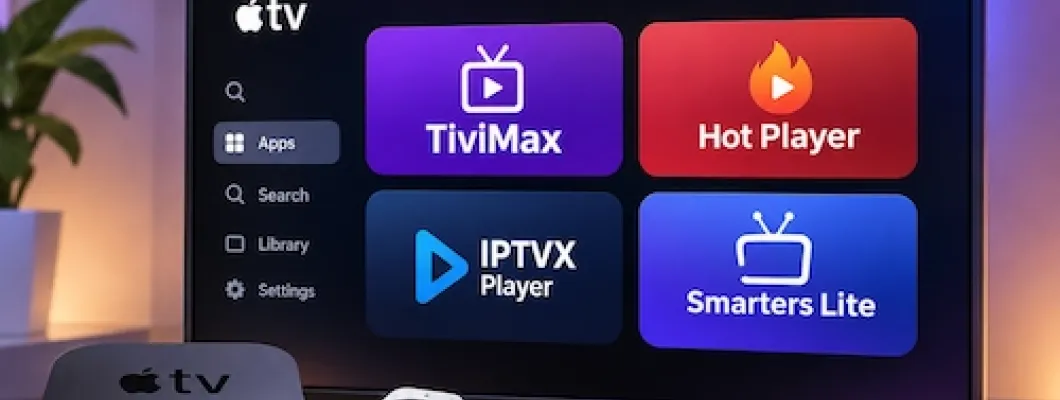
Want to install IPTV on Apple TV 4K or Apple TV HD? You can set up a compatible IPTV player directly from the Apple App Store, add your authorized M3U playlist or Xtream Codes login, and start watching supported live TV and on-demand content.
This Apple TV IPTV setup guide for 2027 explains how to configure four popular players: TiviMax, Hot Player, IPTVX Player, and Smarters Player Lite. Whether you are setting up IPTV on Apple TV for the first time or switching from another streaming device, the instructions below will help you choose the right connection method and avoid common setup mistakes.
You will also learn how to configure an electronic program guide (EPG), improve playback quality, reduce buffering, and troubleshoot playlist login problems. If you are comparing compatible subscriptions in Canada, explore IPTV Canada subscription options at BossTV.
Table of Contents: Apple TV IPTV Setup Guide
- What You Need Before Installing IPTV on Apple TV
- How to Download IPTV Apps on Apple TV
- 1. TiviMax IPTV Setup on Apple TV
- 2. Hot Player IPTV Setup on Apple TV
- 3. IPTVX Player Setup on Apple TV
- 4. Smarters Player Lite Setup on Apple TV
- Best IPTV Apps for Apple TV: Comparison
- M3U, Xtream Codes and Stalker Portal Explained
- How to Optimize IPTV Streaming on Apple TV 4K
- Fix Apple TV IPTV Not Working or Buffering
- IPTV App Safety and Subscription Tips
- Apple TV IPTV Frequently Asked Questions
What You Need Before Installing IPTV on Apple TV
Before starting your IPTV installation, make sure you have the following:
- Compatible Apple TV: Apple TV HD or Apple TV 4K with a supported tvOS version.
- Internet connection: Reliable Wi-Fi or Ethernet where available.
- Apple Account: Signed in to access the tvOS App Store.
- IPTV player: TiviMax, Hot Player, IPTVX or Smarters Player Lite.
- Authorized content source: A compatible IPTV subscription or legally obtained playlist.
- Connection details: M3U playlist URL, Xtream Codes credentials, or a supported Stalker portal configuration.
Apple TV compatibility: Apple TV HD and Apple TV 4K support downloadable App Store applications. The older Apple TV (3rd generation) does not have an App Store for installing these players.
Apple TV 4K supports higher-resolution output than Apple TV HD, but actual streaming resolution depends on the source, app, internet connection, and connected television.
How to Download IPTV Apps on Apple TV
Unlike many Android streaming devices, Apple TV uses the official tvOS App Store for installing supported IPTV applications.
Step-by-Step Installation
- Turn on your Apple TV and connect it to the internet.
- Navigate to the Apple TV Home Screen.
- Open the App Store.
- Select the search option.
- Type the name of the IPTV application you want to install.
- Open the correct app listing and check its developer and compatibility.
- Select Get or the displayed purchase price.
- Complete any required Apple Account confirmation.
- Wait for installation, then select Open.
For additional help, read Apple's official instructions for downloading apps on Apple TV.
Important: A free download does not necessarily mean every player feature is free. Some IPTV apps have optional subscriptions, premium versions, or activation fees.
1. How to Set Up TiviMax IPTV on Apple TV
TiviMax IPTV Player is an Apple TV-compatible media player supporting Xtream Codes, M3U playlists, and Stalker portals. It is worth considering if your IPTV service offers several connection formats.
Step 1: Download TiviMax
- Open the App Store on your Apple TV.
- Search for Tivimax IPTV Player.
- Choose the Lite or Premium version according to your needs.
- Install and launch the application.
You can check the TiviMax Lite App Store listing before purchasing the Premium version.
Step 2: Choose Your IPTV Connection
Open the application's service or playlist management area and select the appropriate connection method.
- Xtream Codes: Use your server URL, username, and password.
- M3U Playlist: Use your complete playlist URL.
- Stalker Portal: Use the portal configuration supplied by your authorized provider.
Step 3: Add an Xtream Codes Login
- Select the option to add a new service or playlist.
- Choose the Xtream Codes connection type.
- Enter a recognizable playlist name.
- Enter the complete server URL, including any required port.
- Enter your IPTV username.
- Enter your password carefully.
- Save the connection.
- Allow TiviMax to load the available categories.
Step 4: Configure an M3U Playlist
- Return to the add-service screen.
- Select the M3U playlist option.
- Enter the complete M3U URL.
- Provide an EPG URL if your provider supplies one and the app requests it.
- Save and refresh the playlist.
Step 5: Watch and Customize
- Open the Live TV section.
- Select a category.
- Choose an available channel.
- Test audio and video playback.
- Explore favorites, TV guide, subtitles, and catch-up features where supported.
TiviMax setup tip: If you have a Stalker-only subscription, confirm that your portal and device authorization details are compatible before purchasing a paid player version.
2. How to Install Hot Player IPTV on Apple TV
Hot Player is a playlist-based media application available for Apple TV. Its App Store description lists M3U and M3U8 support, making it an option for users who receive a complete IPTV playlist link.
Step 1: Install Hot Player
- Open the Apple TV App Store.
- Search for Hot Player.
- Verify the correct application listing.
- Select Get or the displayed installation option.
- Launch Hot Player.
See the Hot Player listing in the Canadian App Store for supported devices and current in-app purchase information.
Step 2: Prepare Your Playlist
Before opening the playlist manager, obtain your authorized M3U or M3U8 URL. Make sure the link is complete and has not been shortened or accidentally modified.
Step 3: Import the M3U Playlist
- Open Hot Player on your Apple TV.
- Find the playlist import or management option.
- Choose the supported URL import method.
- Enter your complete M3U playlist address.
- Name the playlist if prompted.
- Confirm the import.
- Wait for the playlist to finish loading.
If your installed version provides a different import interface, follow its on-screen instructions rather than using an unrelated activation website.
Step 4: Start Streaming
- Open the imported playlist.
- Browse available categories.
- Select a live stream or on-demand item.
- Test playback and audio.
- Use favorites, search, and subtitle features where available.
Hot Player setup tip: Do not assume that every Hot Player version supports direct Xtream Codes login. If you only have Xtream credentials, ask your authorized provider whether a compatible M3U URL is available.
3. How to Set Up IPTVX Player on Apple TV 4K
IPTVX is an Apple-focused IPTV player with support for Xtream API, M3U, M3U8, EPG, favorites, and several additional media features. It can be a suitable choice for people who use multiple Apple devices.
Step 1: Download IPTVX
- Open the App Store on your Apple TV.
- Search for IPTVX.
- Confirm that you have selected the intended application.
- Install the app.
- Open IPTVX.
The official IPTVX App Store listing describes its supported playlist formats and Apple device compatibility.
Step 2: Open Playlist Manager
- Launch IPTVX.
- Open Playlist Manager.
- Select New Playlist.
- Choose Xtream or M3U playlist via URL.
Step 3: Configure Xtream Codes
- Select the Xtream connection option.
- Enter a playlist name.
- Enter your complete server address, including any required port.
- Enter the username supplied by your provider.
- Enter the corresponding password.
- Review the connection details.
- Save the playlist.
- Wait for the initial content import.
Step 4: Alternative M3U Setup
- Open Playlist Manager.
- Choose New Playlist.
- Select M3U playlist via URL.
- Enter the playlist name.
- Paste or type the complete M3U URL.
- Save and allow the app to import the content.
Step 5: Configure Your TV Guide
IPTVX can obtain guide data from supported sources. If your playlist does not include EPG information, check whether your provider offers a separate XMLTV guide URL.
Step 6: Customize Playback
- Open your imported playlist.
- Browse live TV, movies, or series where provided.
- Add preferred channels to favorites.
- Explore subtitle and audio options.
- Review parental controls and category management if needed.
IPTVX setup tip: Some advanced features require an in-app purchase or subscription. Check the current App Store terms before upgrading.
4. How to Install Smarters Player Lite on Apple TV
Smarters Player Lite is a media player available for Apple TV, iPhone, and iPad. Its current App Store listing identifies support for M3U and other playlist formats.
Step 1: Install Smarters Player Lite
- Open the Apple TV App Store.
- Search for Smarters Player Lite.
- Verify that the developer is WHMCS SMARTERS.
- Install the application.
- Launch the player.
Check the Smarters Player Lite Canadian App Store page for its current features and requirements.
Step 2: Accept the Initial Prompts
- Open the installed application.
- Review and accept any required terms.
- Locate the option to add a playlist or media source.
- Select the connection format available in your version.
Step 3: Add Your M3U Playlist
- Choose the supported M3U playlist import option.
- Enter a name for your playlist if requested.
- Enter the complete playlist URL.
- Save or submit the information.
- Wait for the content list to load.
Step 4: Use Xtream Login if Available
Some Smarters-branded versions provide an Xtream-style login interface. If your installed Apple TV version displays that option:
- Select the supported login method.
- Enter a profile name if requested.
- Enter your username.
- Enter your password.
- Enter the server URL.
- Save and test the connection.
If your specific version does not display an Xtream login option, use a supported playlist format instead. Do not assume that instructions for another similarly named Smarters application apply to this one.
Step 5: Test the Playlist
- Open the available media categories.
- Select a channel or video.
- Confirm that playback starts.
- Review audio and video settings.
- Explore any available playlist management features.
Smarters setup tip: The application itself does not supply channels or a content subscription. Your playlist must come from an authorized source.
Best IPTV Apps for Apple TV: TiviMax vs. Hot Player vs. IPTVX vs. Smarters Lite
Choosing the best IPTV player for Apple TV depends on your connection format, interface preferences, and the features available in the current app version.
| IPTV Player | Listed Formats | Suitable For | App Pricing |
|---|---|---|---|
| TiviMax | Xtream, M3U, Stalker | Multiple connection formats | Lite and paid Premium versions |
| Hot Player | M3U, M3U8 | Playlist-based playback | Free download, in-app purchases |
| IPTVX | Xtream, M3U, M3U8 and more | Apple-focused media organization | Free download, in-app purchases |
| Smarters Player Lite | M3U and other listed playlist formats | Straightforward media playback | Free download, in-app purchases |
Our practical recommendation: Consider TiviMax when Stalker compatibility matters, IPTVX for extensive playlist organization, Hot Player for M3U-based playback, and Smarters Player Lite for a simple playlist player. Verify current features and fees before choosing.
M3U Playlist, Xtream Codes and Stalker Portal: What's the Difference?
Before choosing an Apple TV IPTV app, identify which connection method your authorized content provider supplies.
M3U IPTV Playlist
An M3U playlist typically uses a complete URL that a compatible player can import. This format is widely used by IPTV media applications.
Xtream Codes IPTV Login
An Xtream-style connection usually requires:
- Server URL
- Username
- Password
This format can simplify login and content organization when supported by the selected player.
Stalker IPTV Portal
Stalker-style connections use portal-based configuration and may require device authorization or a MAC address supplied or registered according to the service's requirements.
Not every Apple TV IPTV application supports Stalker portals. TiviMax lists support for this format, but you should confirm compatibility with your specific service.
If you want to compare these subscription formats, visit All Boss IPTV Servers.
Security reminder: Treat your M3U URL and Xtream login credentials like passwords. Do not share them in public comments, screenshots, or unverified activation websites.
How to Optimize IPTV Streaming on Apple TV 4K
Even with a compatible IPTV player, picture quality depends on your network, the available stream, your television, and your Apple TV settings.
1. Use a Reliable Internet Connection
For higher-resolution streaming, a stable connection is often more important than a high advertised maximum speed. If your Apple TV model includes Ethernet, a wired connection may provide more consistent performance.
2. Review Apple TV Video Settings
- Open Settings on Apple TV.
- Navigate to Video and Audio.
- Review your video format and resolution.
- If available, open Match Content.
- Consider enabling Match Dynamic Range and Match Frame Rate.
- Test playback to see whether these settings improve your experience.
These options help compatible content use appropriate display settings, but they do not increase the original stream resolution.
3. Keep tvOS and Apps Updated
Install available Apple TV software and application updates to receive compatibility fixes and performance improvements.
4. Review Your IPTV Player Settings
Where available, review playback preferences, subtitles, audio tracks, EPG refresh, and stream selection. Avoid changing multiple settings simultaneously when troubleshooting.
5. Use the Correct Stream Resolution
Apple TV HD does not output 4K video. Apple TV 4K can output 4K content when the source, television, and connection support it.
Apple TV IPTV Not Working? Common Problems and Fixes
Problem 1: IPTV Playlist Will Not Load
Check your server URL, username, password, and any required port. Confirm that the account is active and that the chosen app supports your login format.
Problem 2: IPTV Keeps Buffering on Apple TV
- Restart your IPTV application.
- Test another stream.
- Restart your router if necessary.
- Try Ethernet or a stronger Wi-Fi connection.
- Check whether other streaming applications work normally.
- Contact your content provider if the issue affects multiple streams.
Problem 3: No Channels Appear
Refresh or reimport your playlist. If it remains empty, verify the source and subscription status before deleting the configuration.
Problem 4: Electronic Program Guide Is Missing
Check whether your provider includes EPG information. Refresh the guide or add a supported XMLTV URL when available.
Problem 5: Sound Works but the Screen Is Black
Try another stream and review the player's supported video formats. Check the Apple TV video output settings and any available player decoding options.
Problem 6: IPTV App Is Missing From the App Store
Confirm your Apple TV model, tvOS version, and App Store region. Availability may vary by country or application version.
Problem 7: App Asks for Payment or Activation
Verify whether the charge is for the player itself, an optional premium feature, or a separate content subscription. Do not enter payment information on an unverified website.
IPTV App Safety and Subscription Tips for Apple TV Users
When setting up IPTV on Apple TV, prioritize legitimate application downloads, account security, and properly licensed content.
- Download applications from the official Apple TV App Store.
- Check developer names before installing similarly named apps.
- Read activation and subscription terms before paying.
- Use content you are legally authorized to access.
- Keep playlist URLs and account credentials private.
- Check the permitted number of simultaneous connections.
- Keep your Apple TV and installed applications updated.
For general information about compatible devices, service requirements, and subscription questions, see BossTV's IPTV frequently asked questions.
Remember that an IPTV player is simply software. The legality of the content depends on whether it is properly licensed and whether you are authorized to access it.
Frequently Asked Questions About IPTV on Apple TV
How do I install IPTV on Apple TV?
Open the Apple TV App Store, install a compatible IPTV player, and import your authorized M3U playlist or supported login credentials. Save the playlist and test playback.
What is the best IPTV app for Apple TV 4K?
It depends on your needs. IPTVX offers extensive media organization features, TiviMax supports several connection types, Hot Player focuses on playlist playback, and Smarters Player Lite supports M3U-based media playback.
Can I use Xtream Codes on Apple TV?
Yes. Compatible Apple TV IPTV players, including TiviMax and IPTVX, support Xtream-style connections using a server URL, username, and password.
Can I install TiviMate on Apple TV?
TiviMate is an Android-focused IPTV player and does not have a native Apple TV version. TiviMax is a different application available for Apple devices.
Does Apple TV support M3U IPTV playlists?
Yes. Several tvOS IPTV players can import M3U playlist URLs, including the applications discussed in this guide.
Can Apple TV 4K stream IPTV in 4K?
Apple TV 4K supports 4K output, but actual stream quality depends on the available source, player compatibility, network performance, and television.
Do IPTV apps include free channels?
These IPTV media players generally do not include channel subscriptions. You need your own authorized content source.
Why is IPTV buffering on Apple TV?
Possible causes include weak Wi-Fi, network congestion, high-bitrate streams, or issues with the content source. Test your network and another stream to isolate the problem.
Can I use IPTV on Apple TV HD?
Yes, provided the selected IPTV application supports your Apple TV model and tvOS version. Apple TV HD outputs up to 1080p rather than 4K.
Is TiviMax the same as TiviMate?
No. TiviMax and TiviMate are different IPTV applications. TiviMax has an Apple TV version, while TiviMate is associated with Android TV devices.
Do I need to pay separately for an IPTV player?
Possibly. Some applications offer free downloads with optional paid features, while others offer separate paid versions. Player fees are independent of content subscription fees.
Can I use one IPTV account on multiple devices?
That depends on your provider's connection limits. Installing an app on multiple devices does not automatically authorize simultaneous streaming on all of them.
Final Thoughts: Choosing the Right Apple TV IPTV Player
Setting up IPTV on Apple TV does not require complicated software installation. Start by choosing a compatible player from the App Store, confirm your subscription's connection format, enter the correct details, and test playback.
TiviMax is useful when you need several connection options, including Stalker portals. Hot Player is worth considering for M3U playlist playback. IPTVX provides extensive Apple-focused organization features, while Smarters Player Lite offers another option for importing supported media playlists.
Whichever application you choose, keep your Apple TV updated, use a stable internet connection, and verify any activation charges before purchasing.
Ready to Set Up IPTV on Apple TV?
Choose an authorized content subscription that supports your preferred Apple TV application, confirm its login format, and follow the step-by-step instructions above to complete your setup.
Disclaimer: BossTV is not affiliated with Apple, TiviMax, Hot Player, IPTVX, or Smarters Player Lite. Application availability, compatibility, interface options, and activation fees may change. This article is an educational setup guide for legally authorized media content.